


Applicability
This article applies to: Gate Web platform
Preparation: Make sure you have registered and logged in to your Gate account
Estimated time required: 3 minutes
Objective
This guide will walk you through how to set price alerts for spot and contract trading pairs on the Gate Web platform.
Steps
Step 1: Access the Price Alert Settings Page
Spot Trading Alerts:
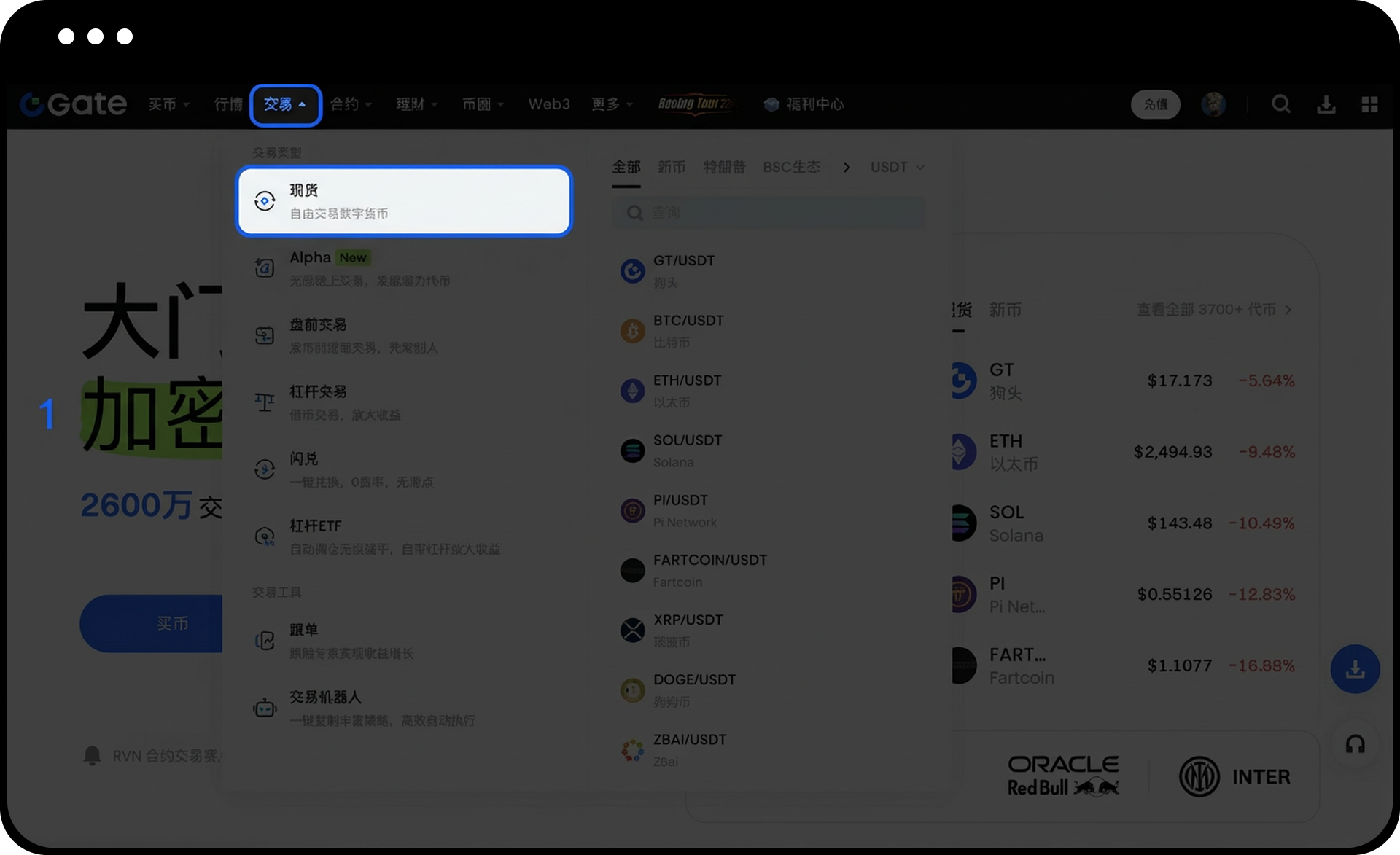
- Click Trading in the top navigation bar
- Select Spot Trading
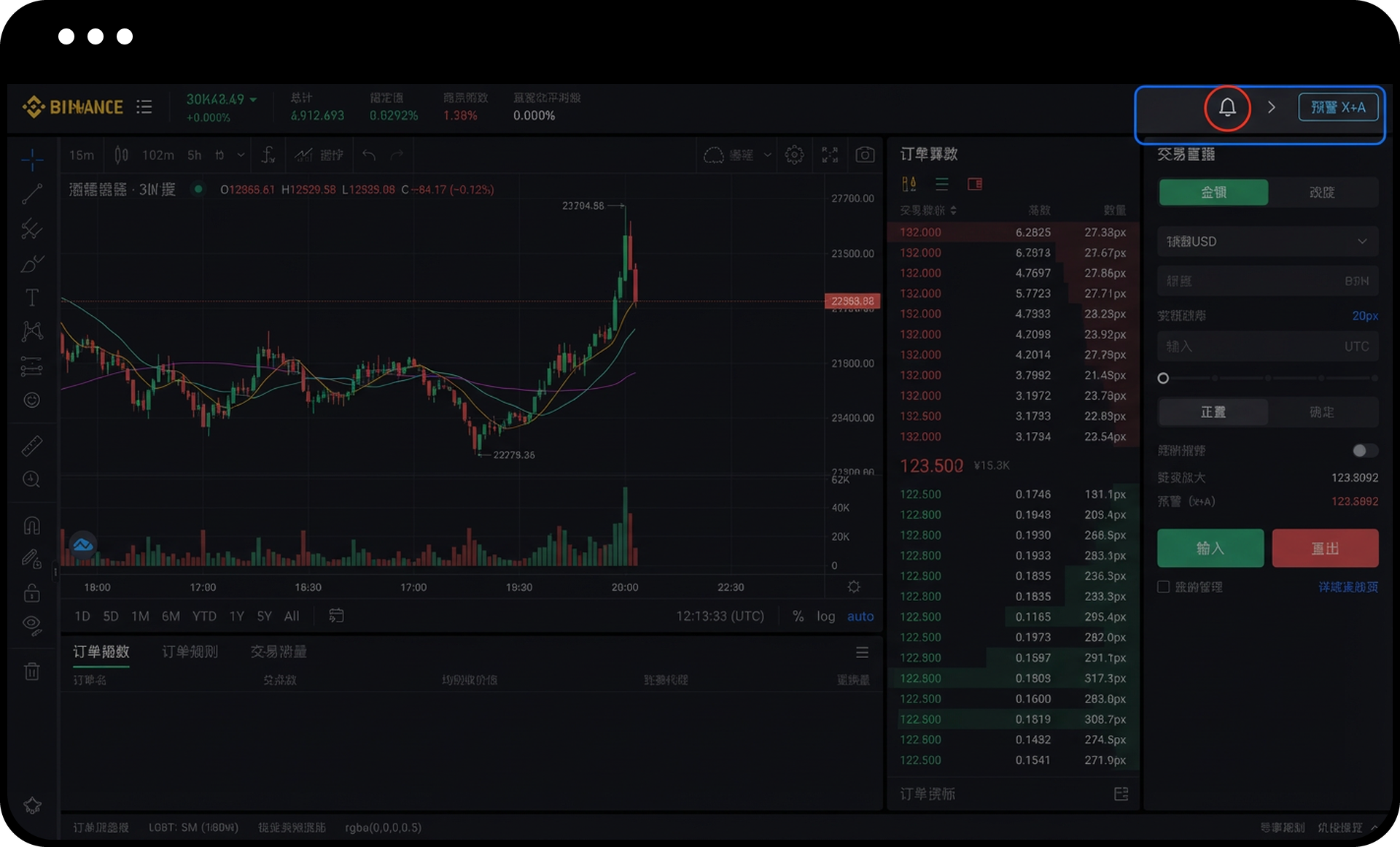
- Click the Price Alert icon at the top right corner of the trading page
Contract Trading Alerts:
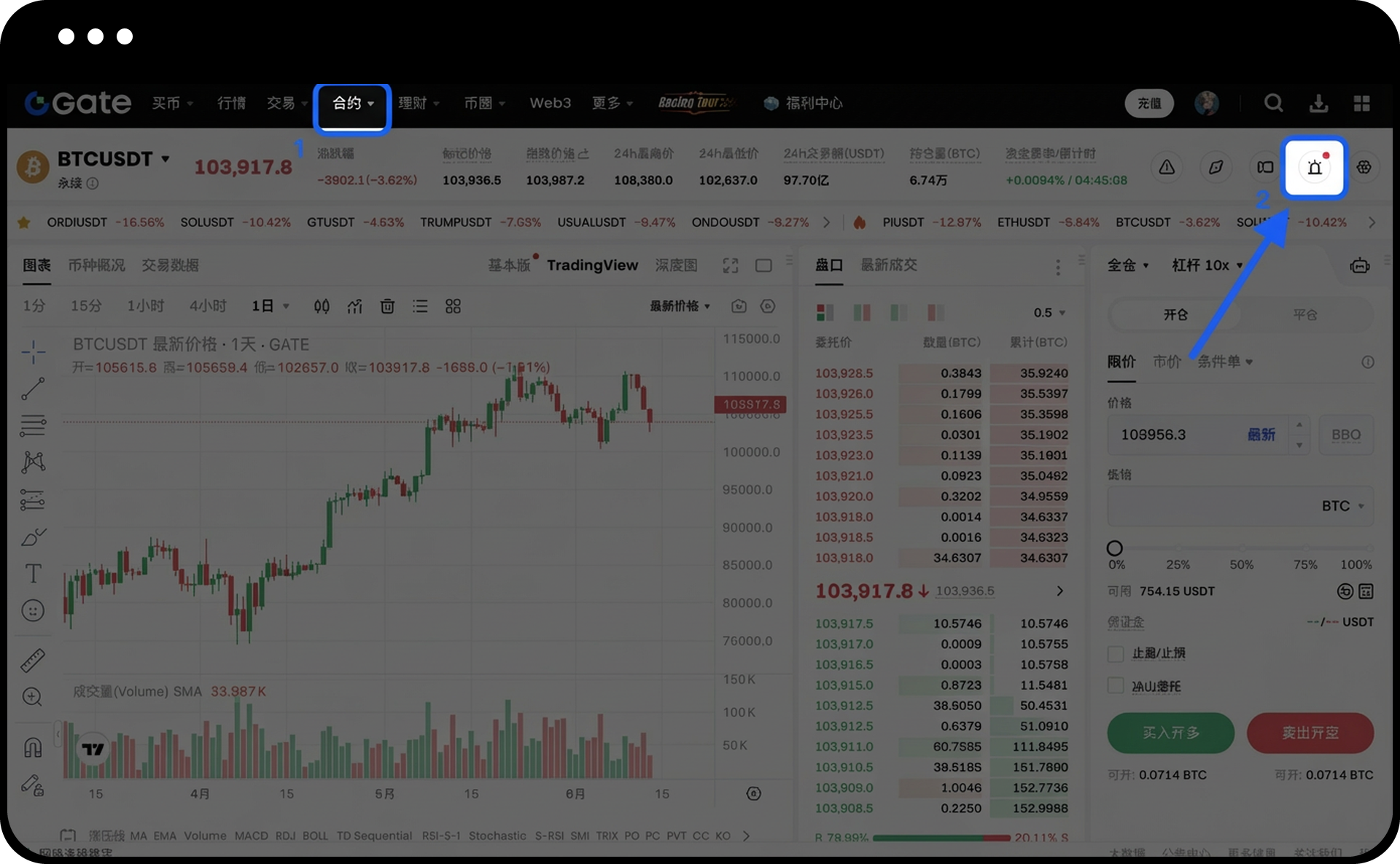
- Click Contracts in the top navigation bar
- Select Perpetual Contracts
- Click the Price Alert icon at the top right corner of the trading page
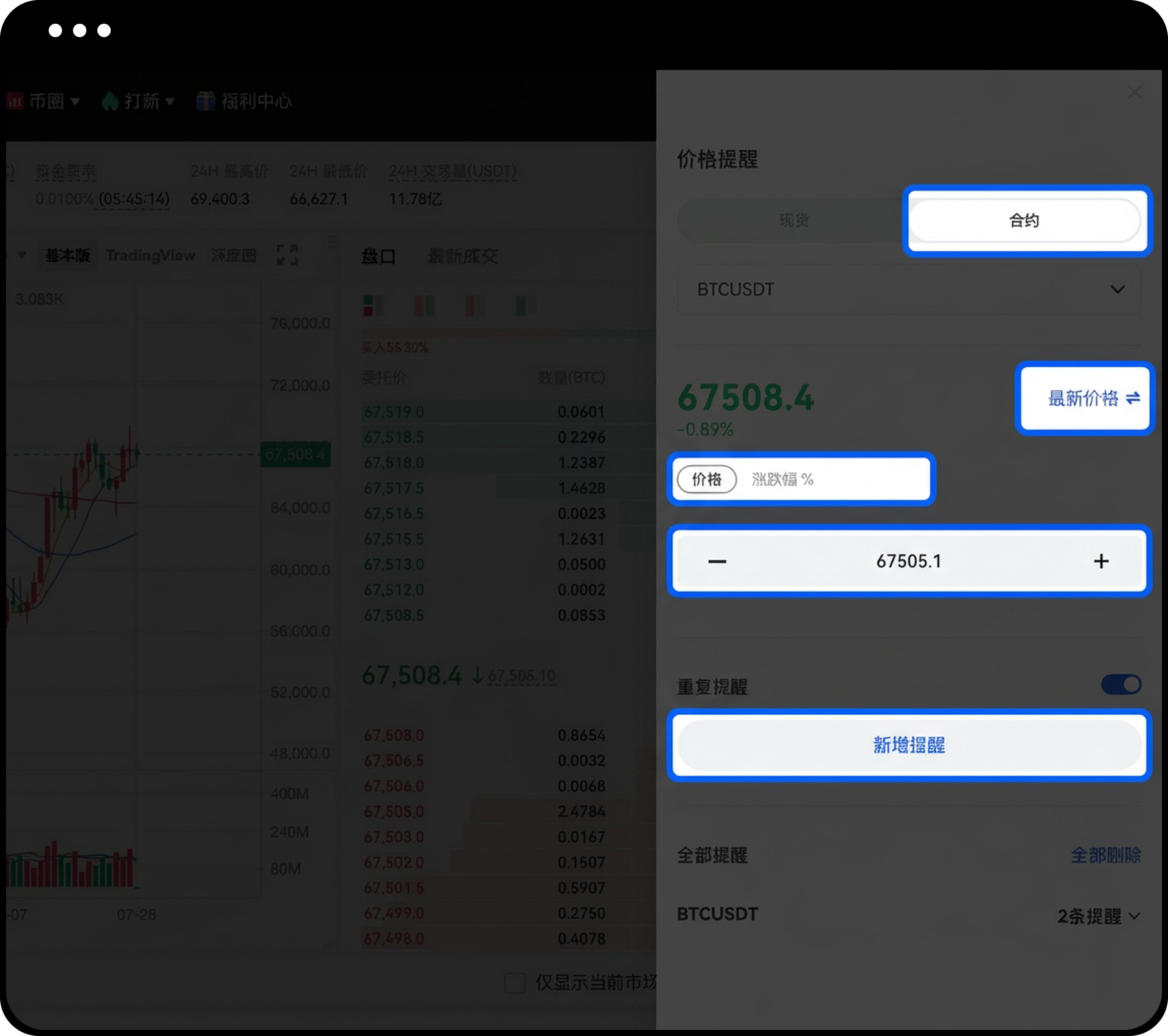
Step 2: Set Alert Parameters
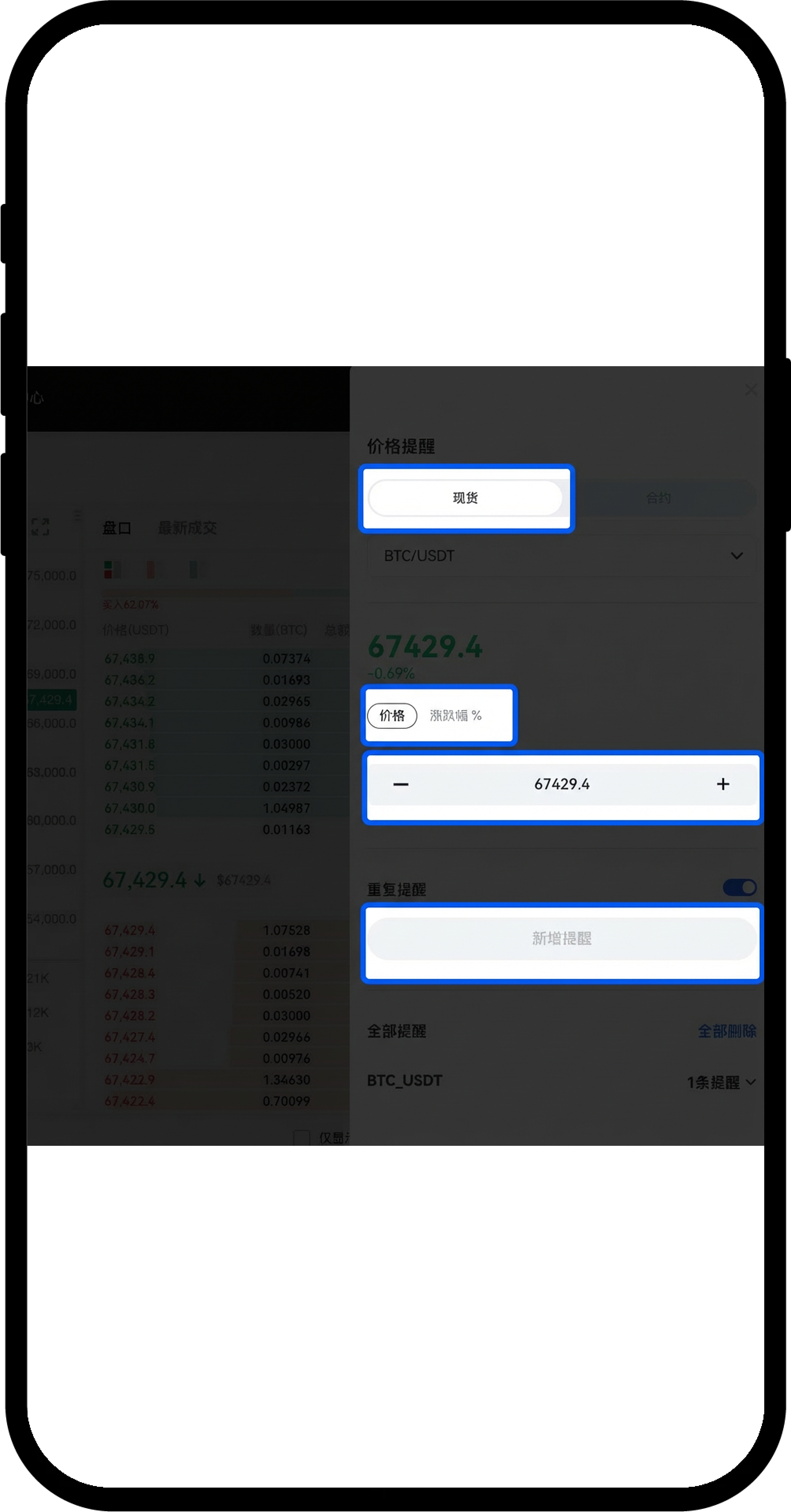
- Choose the trading type: Spot or Contract
- Select the trading pair
- For contracts, choose the alert price type: Last Price or Mark Price
- Set the alert condition: Price or Percentage Change
- Enter the specific value
- Choose whether to enable the Repeat Alert toggle
- Click Add Alert
Step 3: Manage Existing Alerts
- View your list of added alerts on the alert settings page
- You can delete individual alerts
- You can modify the status of the repeat alert toggle
Notes
- Price alerts set on the Web platform will be pushed as notifications on the App
- Alerts are only triggered when the price meets the set conditions
- Make sure you have granted notification permissions to the Gate App to receive alert notifications
Frequently Asked Questions
Q1: Where will I receive notifications for alerts set on the Web platform?
A: When your price alert conditions are met, notifications will be pushed to the App.
Q2: How do I modify or delete an alert I've already set?
A: You can directly delete or change the repeat alert toggle for individual alerts in the alert list.
Q3: Why didn't I receive a notification after setting an alert?
A: Please check the following:
- Whether the price has reached the trigger condition you set;
- Whether your phone's system has granted notification permissions to the Gate App;
- Whether the Gate App is running in the background.
Disclaimer
The content provided herein is for reference and educational purposes only and does not constitute any financial, investment, trading, or legal advice, nor does it constitute an offer or solicitation to buy or sell any digital assets. Gate makes no express or implied representations or warranties regarding the accuracy, completeness, or timeliness of the information contained herein. Product features, interfaces, rules, and fee structures may be updated or adjusted at any time. Please refer to the latest announcements and the actual information displayed on the Gate platform for the most accurate details.
Digital asset investments involve significant risk, and prices may fluctuate substantially. You may lose the entire amount of your investment. Please make decisions cautiously based on your own financial situation and risk tolerance after fully understanding the associated risks. If necessary, you are advised to consult an independent professional financial or legal advisor.
For more information about potential risks, please refer to Gate's Risk Disclosure and User Agreement.
