


Applicable Scope
This guide applies to Gate Web
Before you start: Ensure you have a Gate account and are logged in
Estimated time: 5 m
Objective
This guide will walk you through how to bind or unbind Google Authenticator or Gate Authenticator on Gate Web.
Steps
Step 1: Download an Authenticator App
Gate supports both Google Authenticator and Gate Authenticator:
- Gate Authenticator: Download from the official Gate download page
- Google Authenticator: Search for "Google Authenticator" in the App Store or Google Play
For detailed download instructions, refer to the guide "How to Download Google/Gate Authenticator".
Step 2: Navigate to Security Center
Click "Profile" in the top-right corner, then select "Security Center" from the dropdown menu.
Step 3: Access Google Authenticator Settings
In Security Center, locate "Google Authenticator" and click "Enable". Copy the secret key displayed on the screen.
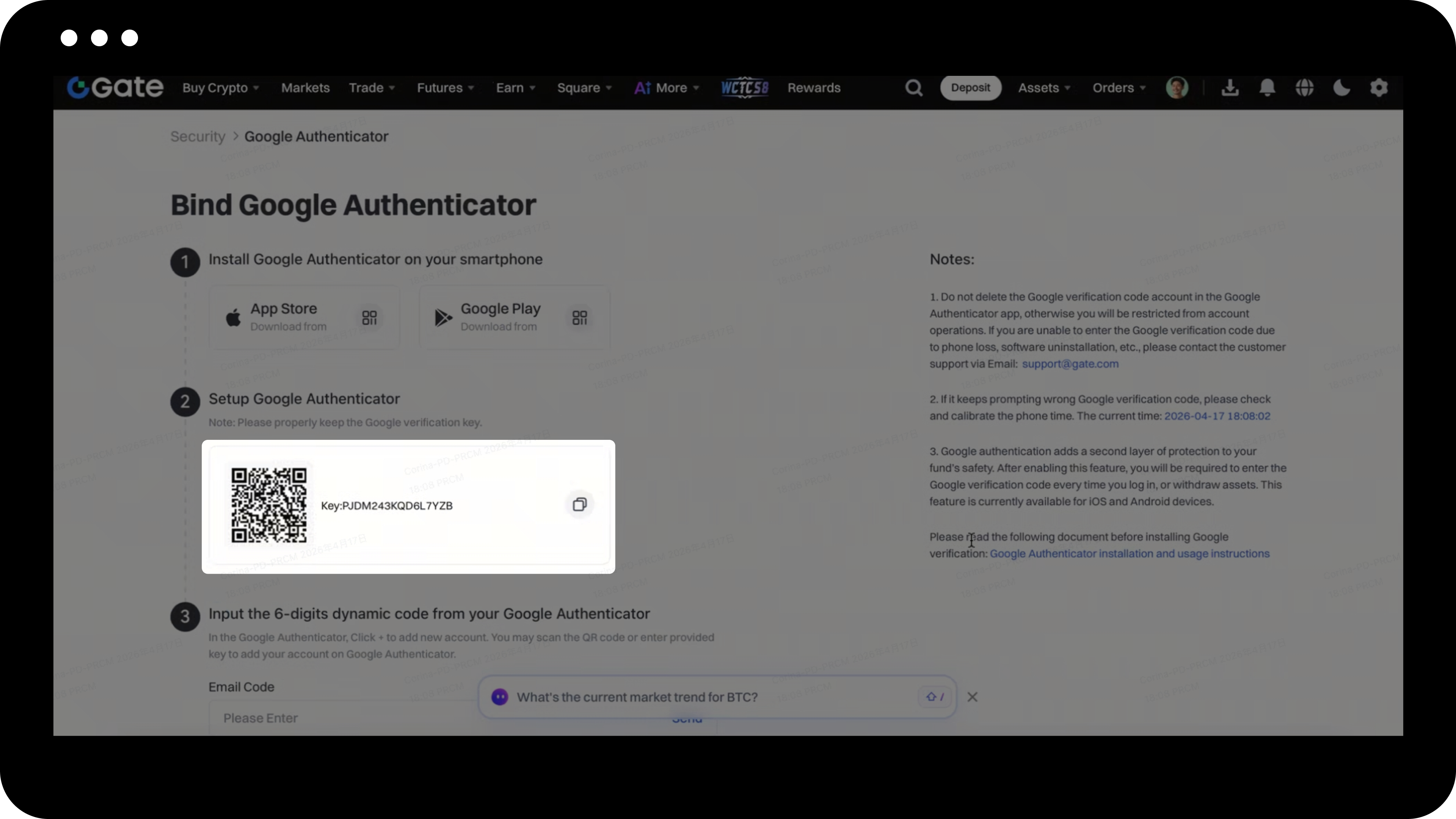
Step 4: Configure Your Authenticator App
Open your Google Authenticator or Gate Authenticator app on your mobile device:
- Tap the "+" icon
- Paste the secret key into the "Key" input field
- Enter your Gate account name
- Tap "Done"
Step 5: Complete the Binding
Return to the Google Authentication setup page on Gate Web:
- Enter the 6-digit verification code from your authenticator app
- Complete any other required information
- Click "Confirm" to finish binding
Step 6: Unbind Authenticator (If Needed)
If you can still receive verification codes:
- Go to Security Center
- Select the authenticator option
- Follow the prompts to unbind
If you cannot access verification codes due to a lost phone or uninstalled app:
- If you can log in: After logging in, click "Security Reset" and follow the instructions to submit your application
- If you cannot log in: Security reset cannot be initiated on Web while logged out. Please access the Gate App instead. On the verification code page during login, tap "Unable to Verify" to submit your reset request
- Your request will be reviewed within 24 hours
- Check your registered email (including spam folder) for the review result
Notes
- The authenticator is required for login, withdrawals, password changes, and other security operations.
- If you frequently fail to receive SMS codes, enabling an authenticator is recommended.
- If verification codes are repeatedly shown as incorrect, check and synchronize your phone's time settings.
- Security reset requests are reviewed within 24 hours, with results sent to your registered email.
- Web users who cannot log in must use the Gate App to initiate security reset requests.
- Gate may update product features, interfaces, and security procedures at any time.
- This information is for educational purposes only and does not constitute financial or legal advice.
FAQ
Q1: What should I do if my authenticator codes show as incorrect?
A: First, check your phone's time settings and ensure they are synchronized correctly. Authenticator codes are time-based and require accurate device time. If the issue persists, verify that you're entering the code from the correct Gate account entry in your authenticator app.
Q2: Can I unbind my authenticator if I've lost access to my phone?
A: Yes. If you can log in to your account, click "Security Reset" in Security Center and follow the instructions. If you cannot log in via Web, you must use the Gate App to initiate the reset request by tapping "Unable to Verify" on the verification code page. The review will be completed within 24 hours.
Q3: Can I use both Google Authenticator and Gate Authenticator simultaneously?
A: You can only bind one authenticator at a time to your Gate account. However, you can use either Google Authenticator or Gate Authenticator - both work with the same secret key. If you want to switch between them, you'll need to unbind the current one first.
Disclaimer
The content provided herein is for reference and educational purposes only and does not constitute any financial, investment, trading, or legal advice, nor does it constitute an offer or solicitation to buy or sell any digital assets. Gate makes no express or implied representations or warranties regarding the accuracy, completeness, or timeliness of the information contained herein. Product features, interfaces, rules, and fee structures may be updated or adjusted at any time. Please refer to the latest announcements and the actual information displayed on the Gate platform for the most accurate details.
Digital asset investments involve significant risk, and prices may fluctuate substantially. You may lose the entire amount of your investment. Please make decisions cautiously based on your own financial situation and risk tolerance after fully understanding the associated risks. If necessary, you are advised to consult an independent professional financial or legal advisor.
For more information about potential risks, please refer to Gate's Risk Disclosure and User Agreement.
